Integrations · WooCommerce
Accept crypto payments in WooCommerce
Accept Bitcoin, USDT (TRC20, ERC20), Ethereum, Litecoin and TRON in WooCommerce. Block and classic checkout; the order is marked paid after confirmation.
WooCommerce
- Plugin (.zip) — The archive is published with the next release — the guide explains installing from the repository.
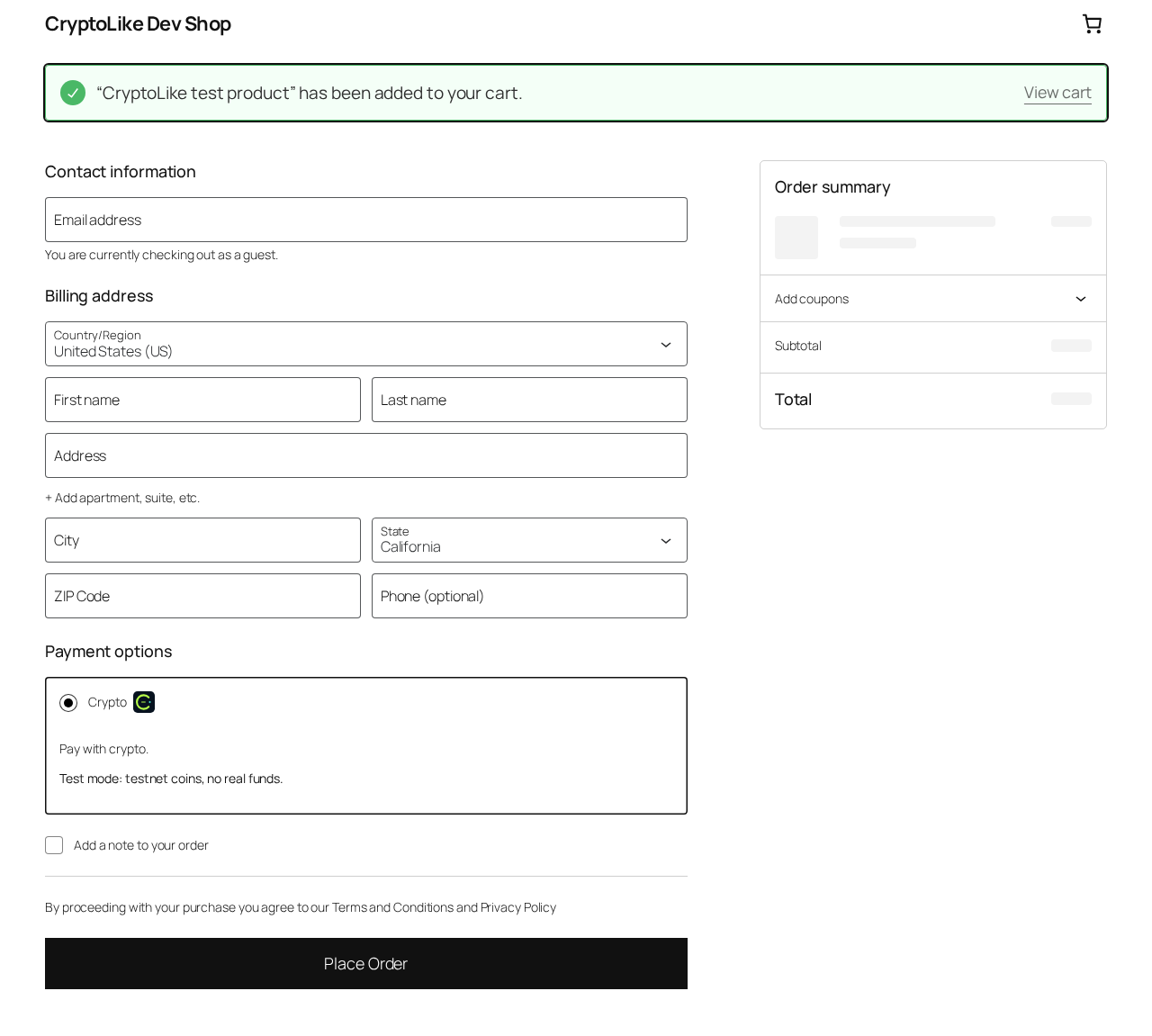
The CryptoLike plugin adds the "Crypto" payment method to your WooCommerce checkout and marks the order paid only when the payment is confirmed on the blockchain. The customer pays in Bitcoin, USDT on TRON or Ethereum, Ethereum, Litecoin, TRON or USDC; your team sees an ordinary WooCommerce order status and never checks a block explorer.
Requirements
The plugin runs on WooCommerce 7.0 or newer with WordPress 6.1 or newer and PHP 7.4 to 8.4. It works with the block-based Checkout and the classic checkout, and with both order storages: HPOS (High-Performance Order Storage) and posts. It was last tested end to end on WordPress 7.1 with WooCommerce 11.1.
| What | Supported |
|---|---|
| WordPress | 6.1 and newer |
| WooCommerce | 7.0 and newer |
| PHP | 7.4 – 8.4 |
| Checkout | Block Checkout and classic [woocommerce_checkout] |
| Order storage | HPOS and posts |
| Store currency | USD, EUR, UAH, GBP or CAD (all five are enabled for every account by default) |
| Your shop | Reachable from the internet over https:// (for webhooks) |
What the plugin does
The plugin creates one CryptoLike payment for each order and keeps the order status in step with it. Every change arrives as a signed webhook; the plugin checks the signature, applies each event once and writes an order note, so the history of a payment is in the order itself.
- Two payment page modes. Redirect the customer to the CryptoLike payment page, or embed the same page on the order confirmation page.
- Coin choice. By default the customer picks the coin on the payment page, from the coins you tick in Coins offered (none ticked: every coin available for invoices). Or the customer picks a ticked coin in your own checkout.
- Partial and late payments. A short payment puts the order on hold and tells the customer how much is missing; money that needs a decision never becomes "paid" by itself.
- One payment per order. A double click, a reload or "Pay for order" later returns the same open payment page.
- Write-only secrets. The API secret and the webhook secret are never shown again after you save them.
- A 15-minute check. A WP-Cron job re-reads open payments, so an order catches up even if a webhook could not reach the shop.
1. Install the plugin
Download the plugin archive from this page, then in WordPress open Plugins → Add New → Upload Plugin, choose the zip, press Install Now and Activate. WooCommerce must already be active. The plugin appears under WooCommerce → Settings → Payments → CryptoLike.
2. Connect your CryptoLike account
In the CryptoLike cabinet open Developers → API keys → Create key and give the key two permissions: create_invoice and read. A shop never needs withdraw. Paste the key ID and the secret into the plugin settings; the secret is shown once in the cabinet. Then copy the Webhook URL from the plugin settings (https://your-shop/wp-json/cryptolike/v1/webhook), add it in the cabinet under Developers → Webhooks → Add endpoint with every invoice.* event, and paste the endpoint's secret into Webhook secret. Until the webhook secret is saved, the method is not offered at checkout.
3. Enable crypto payments and test
Press Check connection: the plugin answers "Connected: N currencies available." Choose the payment page mode, the time to pay and the order statuses, tick Enable crypto payments and save. Before you go live, switch on Test mode with a ck_test_ key and enter the test API URL in API URL (the default is production; ask CryptoLike support for the test URL). Test keys work with test networks, so you can place and pay an order with coins that have no value. The plugin refuses a live key in test mode and a test key in live mode.
What happens to an order
Each payment state becomes one order state, and you choose the exact WooCommerce status for each in the settings. A lower state never replaces a higher one: a delayed "payment detected" event that arrives after "paid" changes nothing.
| Payment | Order (default status) | The customer sees |
|---|---|---|
| Created | Pending payment | "Awaiting payment." and the payment page |
| Transfer detected | Unchanged, note with the transaction ID | "Payment detected. Waiting for confirmation." |
| Confirmed | Processing (stock, e-mails and paid date as usual) | "Payment confirmed." |
| Partial payment, before the deadline | On hold, note with the missing amount | How much is missing, to the same address, until when |
| Partial after the deadline, late payment, second payment, reversal | Your review status (On hold) with a note on what to decide | A message for the case, for example "Payment received after the deadline. The store will review it and contact you." |
| Expired | Cancelled, or kept pending (setting) | "Payment expired. Create a new payment." |
The time to pay is your account setting (30 minutes by default) unless you set another value in the plugin.
The same payment-to-order rules apply on every platform; the other shop platforms are compared in crypto payments for online stores.
Screenshots
Troubleshooting
| You see | What to do |
|---|---|
| The order stays "Pending payment" after paying | The settings page shows "Last verified webhook". If it is empty, the webhook does not reach the shop: check that the shop answers over https://, that a maintenance or "coming soon" plugin lets /wp-json/cryptolike/v1/webhook through, and that the webhook secret is the one of that endpoint. |
| "Crypto payment is not available for XYZ" | XYZ is not among the currencies enabled for your account (by default USD, EUR, UAH, GBP and CAD). Switch the store to one of them, or write to support. |
| The embedded page does not load | Add the shop's address in the cabinet under Settings → Integration → Allowed origins. |
| "Connection failed: auth.…" | auth.invalid_key or auth.invalid_signature: wrong key ID or secret. auth.ip_not_allowed: the key's IP whitelist does not include your server. auth.test_key: a ck_test_ key with the default API URL; test mode also needs the test API URL. |
The debug log is under WooCommerce → Status → Logs, source cryptolike; it never contains secrets, signatures, webhook bodies or customer data. Deleting the plugin removes its settings, both secrets, the job and its table; order notes stay as your payment history.
For developers
The plugin follows the same contract as every CryptoLike plugin: it creates the payment from the server with one open payment per order (idempotency_by_order_id), verifies the webhook signature over the raw body, deduplicates by event_id and answers 200 only after the order is written. The archive contains the developer README with the file layout and the build. On sites with DISABLE_WP_CRON, run wp cron event run --due-now from the system cron so the 15-minute check keeps working. The same flow without a plugin is in the developer guide.
FAQ
What happens if the customer pays less than the order total?
The payment becomes underpaid and the order goes on hold with a note of the missing amount. The customer sees how much is missing and can send the rest to the same address until the deadline. If it arrives in time, the order moves to Processing; if not, it goes to your review status for a decision.
What if the customer pays after the payment expired?
The funds are credited to your CryptoLike balance and the order goes to your review status instead of Processing. You decide whether to ship or refund. If the order was set to stay pending on expiry, the customer can also create a new payment page from "Pay for order".
How do refunds work?
Refunds are not automatic: a blockchain transfer cannot be pulled back. Ask the customer for an address, then send the refund as a payout from the CryptoLike cabinet. The payout carries the platform fee and the network fee shown in the estimate before you confirm it; the rates are on the pricing page.
Which store currencies can I use?
The plugin prices each payment in the order's currency (USD, EUR, UAH, GBP or CAD), and CryptoLike converts it into the coin at the current rate, locked until the payment expires. The currency must be enabled for payments in your account; otherwise the checkout shows "Crypto payment is not available" for it.
Can I test the plugin without real money?
Yes. Switch on Test mode, use a ck_test_ key and enter the test API URL, which CryptoLike support gives you. Test keys work with test networks, and test coins have no value. The checkout shows a "Test mode" badge next to the method. The plugin refuses a live key in test mode, so a live shop cannot take test payments by mistake.
Which coins can customers pay with?
Bitcoin, Litecoin, Ethereum, TRON, USDT on TRON (TRC20) and on Ethereum (ERC20), and USDC on Ethereum: every asset with For invoices on in your account's Coins section, or only the ones you tick in Coins offered. The live list with confirmation thresholds is on the supported coins page; USDT on TRON is the most common choice for stores.
Guides and articles
- How to accept crypto payments on a website: 4 ways comparedFour ways to accept crypto payments with CryptoLike: a CMS plugin, the API or an SDK with a widget, a payment link, the Хорошоп connector. Steps and comparison.
- Underpaid, overpaid and late crypto payments: what happens and what to doWhat CryptoLike does when a customer pays too little, too much or too late, or not at all before the deadline — statuses, webhooks and the next step for each case.
- Verify crypto payment webhooks: HMAC-SHA256 in TypeScript, Python, Go, PHPCheck CryptoLike webhook signatures step by step: raw body, timestamp tolerance, constant-time compare, event_id dedup — code in TypeScript, Python, Go and PHP.
Terms used here
Start with a test payment
Create an account, ask support for the test environment and see a payment go from pending to paid on a test network.